
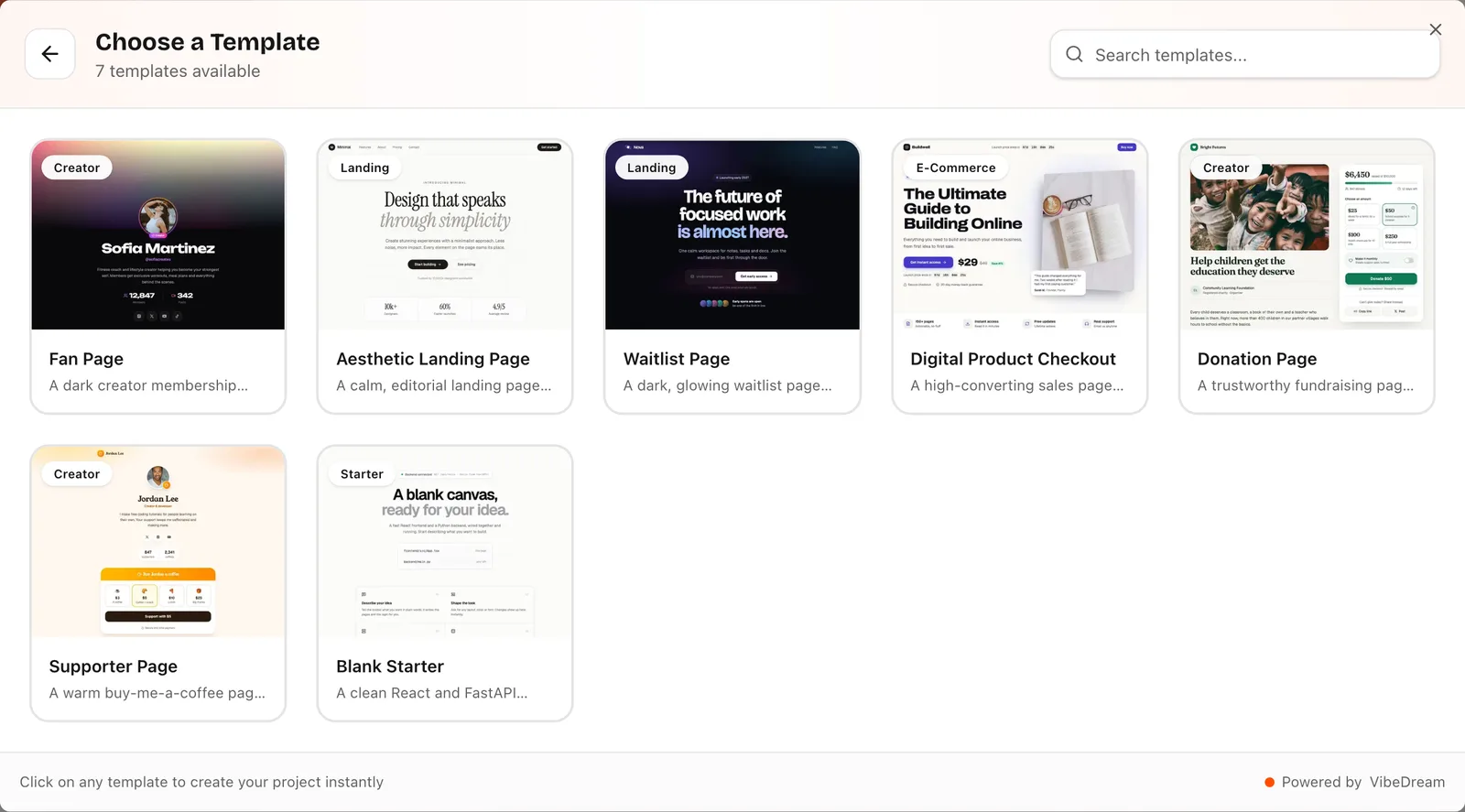
Here is how to build a website with AI in six steps. Write a one-paragraph brief with your real facts, paste it into the builder, check the first preview against the brief, fix what is wrong one sentence at a time, decide where form submissions go, then put it online and connect your domain. The AI handles layout and code. You supply the facts and the judgement. The example is a website for a two-person physio clinic in Manchester, built in VibeDream.
What you need before you start
- The facts the AI cannot guess: business name, location, prices, opening hours, phone, email.
- The words you care about most, such as your headline and the paragraph about you. The AI can draft the rest, but these should sound like you.
- Three to ten photos, or permission to use placeholder images until you have them.
- One or two sites you like the look of. A screenshot is worth fifty words of description.
- A VibeDream plan. All Access Mini is $49 a month with 60 credits, which covers a small site and its edits.
Write a one-paragraph brief
The first preview is only as good as the brief. A useful brief answers five questions: who is it for, which pages, what should visitors do, how should it look, and which facts must be exact. Keep it to one paragraph so nothing important gets buried.
A website for Northside Physio, a two-person physiotherapy clinic in Manchester. Pages: home, treatments with prices, our team, book an appointment, contact. Visitors should request an appointment. Calm and clinical look: white background, deep teal accents, rounded cards, lots of space. Exact facts: open Mon to Fri 8am to 7pm, phone 0161 000 0000, 45-minute first session. Mobile first.Notice what is missing: no talk of fonts, frameworks or components. You can add style detail later, once you see what you got. If you would rather talk than type, tap the microphone and say the brief out loud. You can also attach a screenshot of a site you like and add: match this layout, but in my colours.
Generate and review the first version
In VibeDream, tap New Project, choose Direct Prompt and paste the brief. If you would rather start from a design, choose Use Template instead. The template picker in the screenshot above shows the current set. For a business site, the Aesthetic Landing Page is the closest fit: it has pricing, about, contact and legal pages, and all its copy sits in one file the AI edits. Either way, a live preview starts within seconds and fills in while the AI writes the code.
When it finishes, review it like a stranger would. Do not fix anything yet; make a list first.
- Can you tell what the business does within three seconds of landing on the home page?
- Are the exact facts exact? AI tools sometimes round or invent a detail, so check every price, time and phone number.
- Does every page in the brief exist, and does the menu reach each one?
- Switch the preview to phone view. Does the menu collapse, do images fit and can you tap every button with a thumb?
- Is there anything you did not ask for, like a fake testimonial or a made-up award? Ask for it to be removed.
Edit with short, specific prompts
Most fixes take one sentence. The pattern that works is one change per message, named by where it is and what it should become. Vague prompts like make it better produce random changes. Here are the kinds of edits that come up on almost every site.
- On the home page, replace the headline with: Physio that gets you back to running.
- Move the opening hours from the footer to just under the hero.
- The treatment cards are too tall on phones. Make them half the height and show two per row on desktop.
- Change the teal to a slightly darker shade and use it only for buttons and links.
- Remove the testimonials section until we have real ones.
- Add a privacy page with the text I will paste next.
Suggestions under the chat, like Make it darker, apply common changes in one tap. If something breaks, copy the error message, paste it into the chat and ask for a fix. Each message uses credits, so batching three small, related changes into one message is fine, as long as they are clearly separate sentences.
Add a contact, booking or waitlist form
A form that looks right is not the same as a form that works. Decide where submissions should go before you ask for one. The Aesthetic Landing template's contact form validates fields and shows a thank-you message, but it does not store messages on its own. The Aesthetic Waitlist template, by contrast, saves every signup and shows a live count with no setup.
For your own site, say what should happen in plain words: save each appointment request with name, phone, preferred day and reason, and show me a list of requests on a private page. The AI writes that saving into your site's own backend. If only staff should see the list, ask for a passcode or a simple login on that page. You can also tap Add login or Add database under the chat. If people will upload files, such as photos for a quote, the file uploads guide explains the storage that comes with your plan.
Put it online and connect your domain
Tap Put it online, pick a name for your address and confirm. Publishing takes one to three minutes and costs 5 credits, and your site goes live at an address like northside-physio.vibedreams.ai with HTTPS already on. Your live site stays on that version until you press Update it, so you can keep editing the preview without touching what visitors see.
- Open Put it online, then the Your own domain tab.
- Enter the www version of your domain, for example www.northsidephysio.co.uk. Root domains are not supported yet.
- Copy the TXT and CNAME records shown into the DNS settings at the company where you bought the domain.
- Wait. Changes usually show up in 5 to 30 minutes, and VibeDream keeps checking for 72 hours, then switches on HTTPS automatically.
- At your registrar, forward the bare domain to the www address.
The deployment guide has screenshots of each of these steps, and the own domain section covers the common DNS mistakes.
Common problems and quick fixes
- The AI keeps undoing an earlier change. Restate the rule in one line: keep the opening hours under the hero on every page.
- The design drifted after many edits. Ask it to make every page use the same header, button style and spacing as the home page.
- A page looks fine on desktop but broken on a phone. Switch to phone view, take a screenshot, attach it and say what is wrong.
- The domain still says Waiting. Check the records for extra dots or spaces, and make sure you used the www name.
- Changes are not on the live site. Open Put it online and press Update it; the preview and the live site are separate on purpose.
If you want the wider picture, including when to code by hand or use a classic site builder instead, read how to build a website. If your site is really a single page with one goal, how to make a landing page is the better guide.