
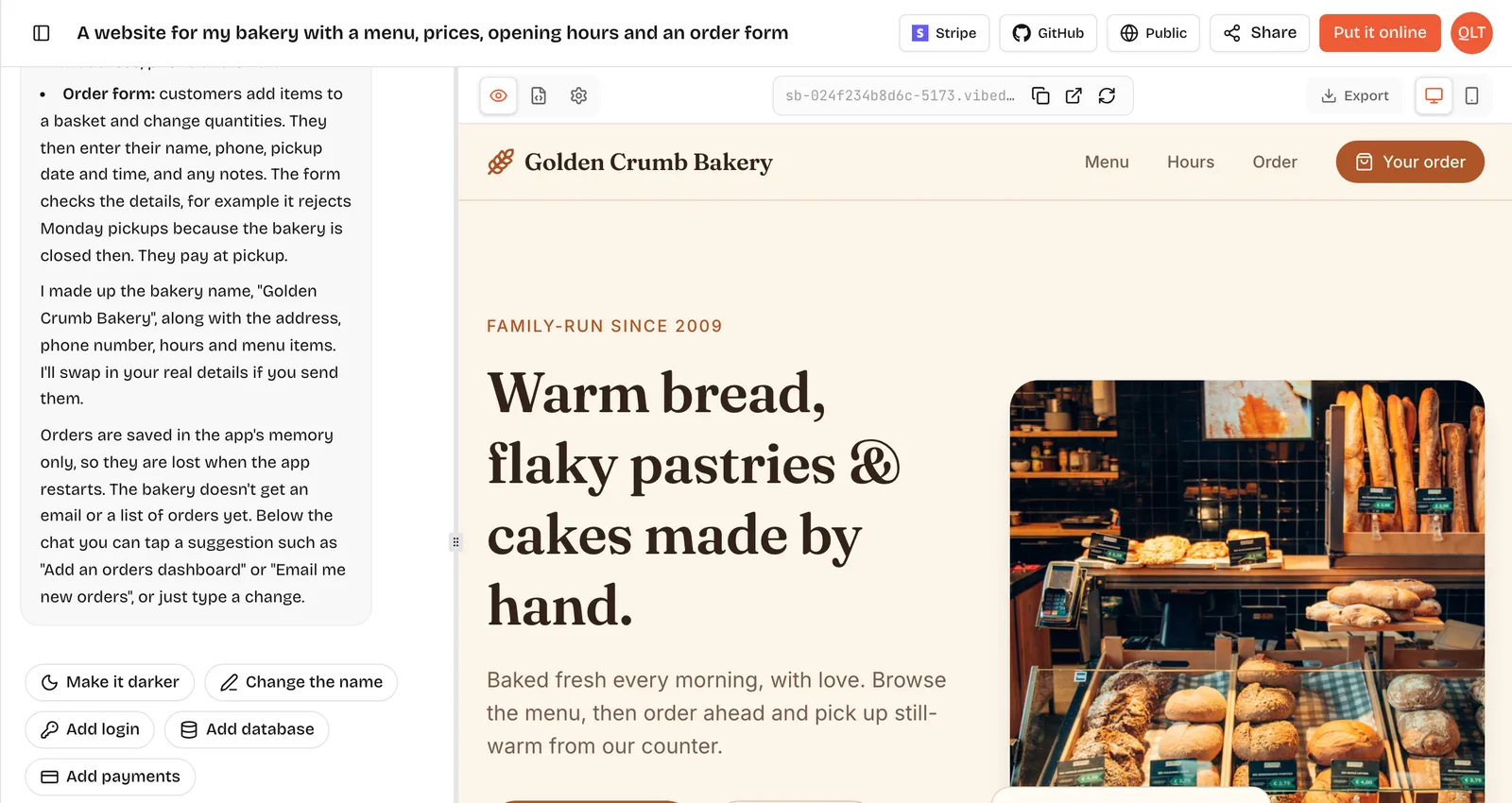
To vibe code, you describe the app you want in plain words to an AI tool, try the version it builds in a live preview, and send short follow-up messages that say what to change, one thing at a time. You judge the result by using it, not by reading the code. When it works the way you want, you put it online. That is the whole loop, and the steps below show how to do each part well.
The examples below use VibeDream, which shows a live preview next to the chat and can put the app online in one step, but the habits carry over to Lovable, Bolt, Replit or any other vibe coding tool. If the idea itself is new to you, read what vibe coding is first. It takes two minutes.
What you need before you start
Less than you think: an idea small enough to describe in a paragraph, a vibe coding tool and about an hour. A browser builder means nothing to install.
- One sentence on who the app is for. "Dog owners who book grooming" is better than "pet people".
- The one job it must do well. Booking a slot, logging a habit, collecting emails.
- A picture in your head of the first screen. Even a rough sketch helps, and you can attach a photo of it.
- An account on a tool that runs the app for you. On VibeDream, building uses credits from a monthly plan that starts at $49 for 60 credits.
Skip anything you cannot describe yet. Payments, admin panels and dashboards can come in later rounds.
Step 1. Write the first prompt
The first prompt sets the shape of everything after it, so spend five minutes on it. A good first prompt has four parts: what it is, who it is for, the main screens, and the look.
Build a booking page for my dog grooming studio, Fluffy Cuts.
It is for local dog owners booking on their phone.
Screens: a home page with our three services and prices,
a booking form (name, phone, dog name, service, date, time),
and a thank-you screen.
Look: warm and friendly, cream background, rounded buttons, large text.
Notice what the prompt leaves out: hex codes, framework names and the phrase "make it modern and clean", which tells the AI nothing. The builder picks the stack itself. On VibeDream apps are React + FastAPI and games are Phaser. If typing feels slow, tap the microphone and say it out loud, or attach a screenshot of a site you like and write "like this, but for dog grooming".
If you would rather not start from a blank page, pick a template such as the Aesthetic Landing Page or the Aesthetic Waitlist and change it by chatting.
Step 2. Read the preview, not the code
Within seconds a preview appears and fills in as the AI works. Most beginners glance at it, type "looks good" and move on. Use it like a customer would instead.
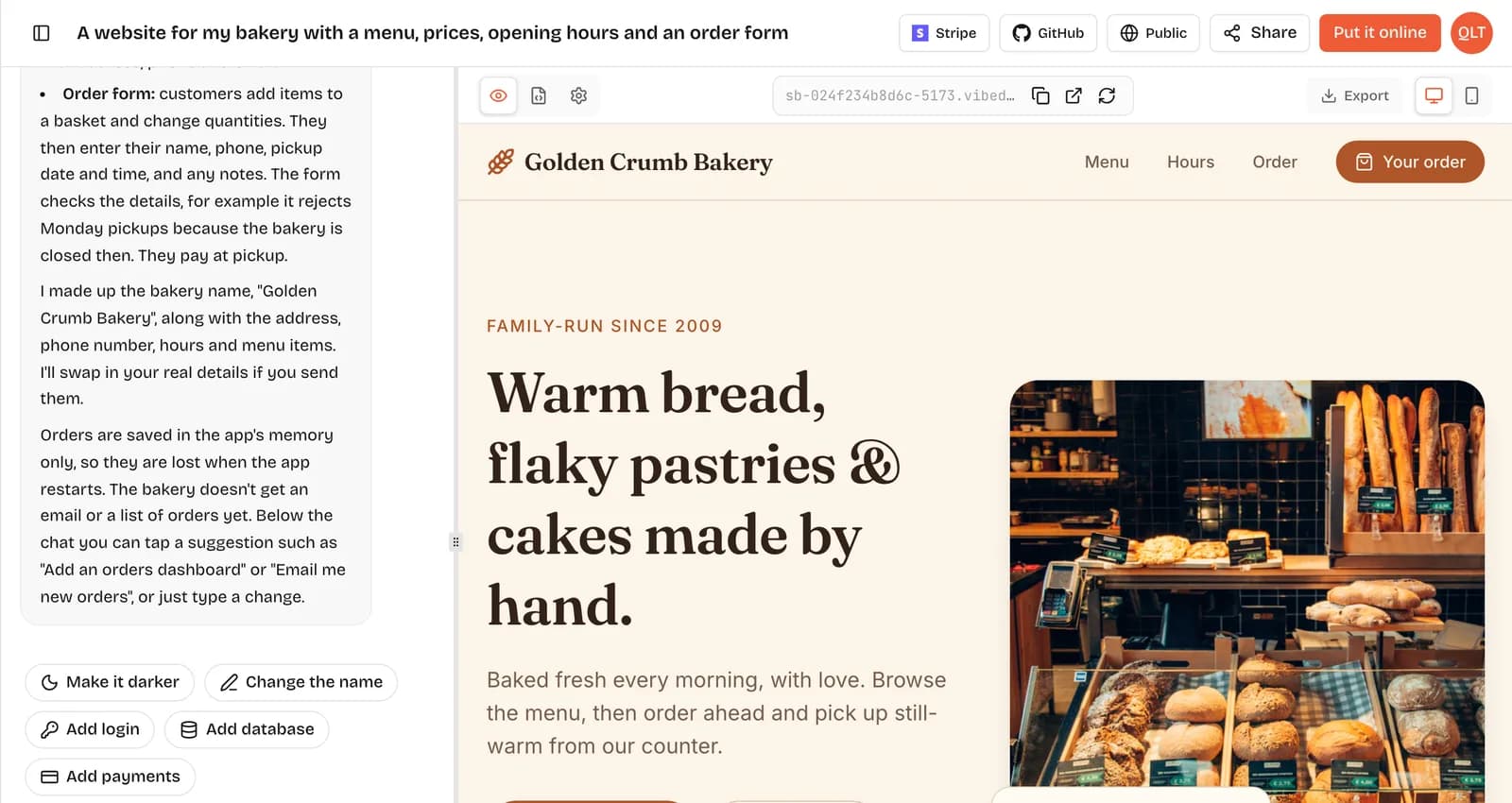
- Click every button and link.
- Fill in the form with real-looking data, then with bad data, like a missing phone number.
- Switch to the phone view. Most of your visitors will be on a phone.
- Open the preview in a new tab to see it full size.
Write down what is wrong as you go. That list is your next five prompts.
Step 3. Fix things with small follow-up prompts
One change per message works far better than a list of ten. Small prompts are easier for the AI to get right and cheaper when it gets them wrong.
- "The service cards are too close together on phones. Stack them with more space between."
- "Make the Book now button bigger and move it above the prices."
- "The date field lets me pick days in the past. Only allow today or later."
- "Add a short FAQ section below the services with these four questions: ..."
If something breaks, copy the error message and paste it into the chat with one line: "This error appears when I press Book now." The AI can usually read the error and fix the cause. If the same fix fails twice, describe the behaviour you want instead of the bug: "When someone submits the form, show the thank-you screen with their dog's name."
Step 4. Add saved data, login and payments when you are ready
A first version can be a page that looks right and handles one action. Once that works, add the parts that store things. Under the chat box on VibeDream you will see Add login and Add database. Tapping one sends a ready-made request, or you can ask in your own words.
- Saved data. VibeDream apps have a FastAPI backend, so the app can keep records on the server. The Aesthetic Waitlist template stores every signup and shows a live count without any setup.
- Login. Ask for it in plain words: "Only I should see the bookings list. Add a password-protected admin page."
- Payments. Treat money with extra care. On VibeDream, one-tap payments are coming soon, so for real card payments today you connect your own Stripe account to the app.
- Secret keys. Never paste an API key into the chat. Put keys in the project's Settings tab, where the backend reads them on the server.
Before strangers can sign in or pay, run the vibe coding security checklist. It takes under an hour.
Step 5. Put it online
When the preview does what you want, publish it. On VibeDream you tap Put it online, pick a name for your address, such as fluffycuts.vibedreams.ai, and confirm. It costs 5 credits and usually takes 1 to 3 minutes. HTTPS is set up for you, and you get a link and a QR code to open it on your phone.
Two things catch beginners out. The live site stays on the version you published until you press Update it, so you can keep experimenting in the preview without breaking anything. And you can move to your own domain later by adding a TXT record and a CNAME record at your domain provider. The deployment guide walks through both.
An example prompt sequence
Here is how a first session for the grooming page might run. Your messages will differ, but the rhythm holds: one change, check the preview, next change.
- Prompt 1: the first prompt from Step 1.
- Prompt 2: "Stack the service cards on phones and add more space."
- Prompt 3: "Only allow booking dates from today onwards."
- Prompt 4: "Save each booking and add an admin page at /admin that lists them, protected by a password I set in Settings."
- Prompt 5: "Change the colour of the buttons to a deep teal and make the headings friendlier."
- Prompt 6: "Add our address, opening hours and a map link to the footer."
Six small prompts like these are easier to check than one giant prompt that tries to say everything, and when one goes wrong you know exactly which.
Common mistakes beginners make
- Asking for a whole company in one prompt. "Build me Airbnb" gives you a shallow version of everything. Build one screen, then the next.
- Saying "make it better". The AI cannot read your mind. Say what is wrong and what you want instead: "the price is hard to find, put it under the service name in bold".
- Changing ten things at once. If something breaks, you will not know which change did it.
- Never opening the phone view. Most visitors to a booking page arrive on a phone.
- Skipping security because it is "just a side project". Side projects collect real emails too.
- Forgetting to press Update it after changes, then wondering why the live site looks old.